Need help with Coursedog Curriculum? Join our Zoom Sessions running Monday through Friday starting Monday, August 17th through Friday, November 13th, 9-10am and 2-3pm.
Curriculum Training Guides
NEW: Product Updates
Coursedog is releasing a November platform update that changes how users view, build, and maintain course requisites, program requirements, and degree maps. The most visible changes involve redesigned screens, right-side editing panels, full-screen editors, and revised navigation and save actions.
- Course requirements - New user interface
- Program requirements - New user interface
- Degree maps - New user interface
Support Items
Supported Browsers
- Coursedog ensures full compatibility with the latest general availabilty release of the following browsers: Microsoft Edge, Mozilla Firefox, Google Chrome, and Apple Safari.
Accessing Coursedog
To Log into Production, go here.
Logging in via Single Sign On (SSO)
Step 1: Enter your K-State email address into the standard login page.
This should be your @ksu.edu email address only. If this doesn't work, you can try @k-state.edu as an alternative option. Alternative emails, such as @vetmed.ksu.edu or @math.ksu.edu, are not connected to this system.
Step 2: You will then be directed to the K-State login page, where you will enter your K-State password.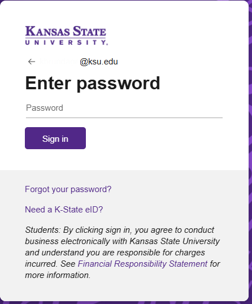
You will be taken to the K-State Coursedog dashboard where you will see any modules/products assigned to your level of access.
Logging Out
- To log out of Coursedog, click on the profile icon in the upper right hand corner of your screen and select "Log Out"
View-Only Access User Guide (PDF)
CD Support: Introduction to Curriculum Management for New Users
Accessing Coursedog
- To Log into Production, go here.
- Click to Sign In
- Login with your K-State email and password
Navigation
Select Curriculum Management
Curriculum Management Page
Menu options appear on the left
- Courses - click to view a course
- Programs - clcik to view a program
- Proposals - lcick to find proposals that have been submitted, but not yet fully approved.
Courses and Program pages
Use the Filter and Search features to find courses or programs.
- To find a specific course search on Code, which is Subject + Course Number, with no space between. For Example: MATH100
- To view additional columns, remove columns, or reorder columns in your results, use the COLUMNS selection menu.
- To view courses and programs approved for a future term, use the Effective Start Term drop-down and select the term of approval or later.
Viewing course and program records
- From the course or program page, click a course or program to view it.
- The Revision drop down will show you any past updates that were made using a new effective term in Coursedog.
Note: If your committee is subject to open records requirements, we recommend exporting and saving a PDF copy of the agenda for public posting before archiving or deleting it from Coursedog. If you are unsure whether your committee falls under these requirements, please consult the Office of General Counsel for guidance.
Viewing All Agendas
Navigation: Curriculum Management>Agendas
- View all upcoming Agendas at your institution
- Click into any agenda to view its details
- There is no search/filter
- This illustrates where standard naming conventions might be helpful
Viewing Agenda Details
- Click into any agenda to view its details.
- It will include basic meeting information, attachments, attendees, and proposals.
- Committee (upper left in blue)
- Attendees (upper right)
- Attachments (upper right with number of attachments in parentheses)
- Title (top row)
- Agenda Description (below title)
- Date, Meeting Type, Start At, Ends At
- Notes
- Proposals (displays number)
- Proposals list includes Name, Proposal type, Current Step, Request Status
- click a proposal to view/make a decision
- If click “All proposals” goes back to Proposals tab
- if click “Browser back button” goes back to agenda
Editing Agendas
- Click “Edit Agenda” to modify the agenda details, modify the proposal list, add attachments, or modify the attendee list.
- Click “Save” when you are done.
Deleting Agendas
You can remove or delete an existing Agenda by clicking on the “Delete Agenda” button in the upper right-hand corner. You will be prompted to confirm before it is removed.
Agenda Meeting Calendar
If you are involved in a committee, you may see agendas for meeting displayed on your Curriculum Management Homepage in the Upcoming box
Example Email to Participants
You have been added to the following curriculum agenda: TEST Committee 20260817. This meeting will take place on Tuesday, August 25, 2026 at 3:45pm. Details for this meeting are attached.
Best, Coursedog

A PDF version of the agenda is attached for download
Courses & Programs
New Program Proposal (PDF)
CD Knowledge Base: Proposing a New Course of Program
Accessing Coursedog
- To Log into Production, go here.
- Click to Sign In
- Login with your K-State email and password
Click on the Curriuculum Management Module
New Proposal
You have two places where you can start a new program proposal.
1. On the Home Screen, click on the +New Proposal on the right side of hte screen under Actions
2. OR Click on Programs in the Left Side Menu
On the Programs screen, click on the +Proposal New Program at the top of the screen.
The popup will appear for you to select the correct form to use for this proposal
Select Program New
then go to the Form
Academic Plan Details
Fill in ALL required fields in this section:
- Contact person email and telephone number
- Catalog Display Name: enter a name for the new program using the format of TITLE (Degree Code). A link to the KSIS degree type codes and a list of example program titles are provided on the form on the right hand side.
- Catalog Full Description: a description of the program that will display in the academic catalog.
- Program Type: select the appropriate program type from the dropdown list:
- Accelerated Degree Program, Associate, Bachelor, Certificate, Doctorate, etc.
- Academic Plan Code: for a new program, enter a plan code that is based on the program type and program title. The code will be checked by curriculum staff and may be changed to adhere to academic plan code standard practices.
- A: Associaties
- B: Bachelor
- C: Certificate
- D: Doctoral
- E: Ed.D. or Ed.S.
- M: Masters
- R: Minor
- Academic Plan Description: This is the program title shortened (if necessary) to 30 characters
- Status: Active
- Effective Start Term: choose the term for the new program to start
- Effective Start Date: will automatically fill in based on the start term chosen.
- Degree: KSIS degree code.
- Do not use any historically used codes if in the list, like numerical codes 01, 02, 32 or J1, H4, etc. Scroll down in the list if needed to find BA, BS, BMED, MS, PHD, or you can type in the code
- Academic Organization: mutili-select field which identifies the colleges/departments that own the program
- Academic Organization Ownership: multi-select field to indicate the percentage of ownership. There must be a primary owner!
- Click on the + sign to add all the applicable academic organizations that will have ownership in the program.
- The total percentage must add up to 100% and on organization must have a higher percentage than the others to be the primary owner.
- Use Add Department to add additional lines.
- College: academic group code for primary college
- Career: Undergraduate, Graduate, or Veterinary Medicine
- Either Career or Academic Program is required to complete the proposal.
- Total Hours Required: enter the number of hours needed to complete the program.
- This can be a single number or a range.
- 120 for a Bachelor's degree
- 12-15 for a Certificate
- This can be a single number or a range.
- Academic Program: degree type by academic group code.
- Either Career or Academic Program is required to complete the proposal.
- New Courses: list any new courses that are being proposed (in a separate Course New proposal) that will be part of this new program.
- Upload supporting documentation: files can be added to the proposal for documenation
Kansas Board of Regents Card
- KBOR Rationale - Enter a rationale, if needed, for programs requiring over 120 credits.
- KBOR New Program Guidelines – contains links to website with KBOR policies
- Assessment of Student Learning (ASL) - contains links to websites for assessment
- KBOR New Program OR Assessment of Student Learning – Attach forms and documentation by clicking on Add Files. A search popup will allow you to select files from your computer.
Requirements Card
This card is for adding the program requirements and includes sections for Admission Requirements, Graduation Requirements, Program Requirements (which includes K-State Core, if applicable), Major, Subplan, and Total Hours Required.
See Adding Program Requirements section below for instructions on how to complete this card.
Campus Plan Card
- HEGIS Code – Select the HEGIS code for the primary program location from the dropdown list. Use only the following codes: MANHAT, ONLINE, SALINA, ONLSAL, OLATHE, ONLOLT.
- CIP Code - Use the dropdown list to select the correct CIP code for the program.
- Campus Plan – Select all campus locations from the dropdown list. This is a multi-select field.
- Explain Campus Offerings
- Online Program Percentage – Enter the percentage of the program’s online content.
Rationale and Impact
- Rationale - Enter a detailed rationale for the new program
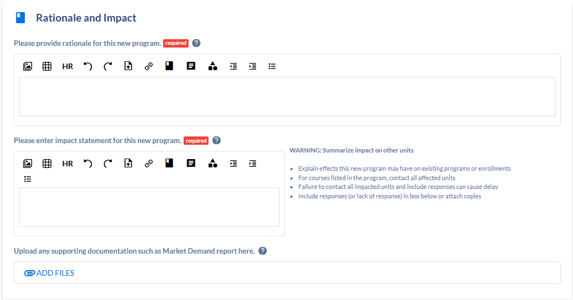
- Impact statement – Enter information on how this program impacts other colleges and departments.
- Upload any supporting documentation – Attach any supporting files like emails to other colleges and departments regarding the program impact by clicking on Add Files.
Screenshot of the Rationale and Impact card
Licensed Programs
Use this section to enter information for any program that leads to licensure. If the program doesn’t lead to licensure, select No for the “Does this program lead to licensure? question.
Specializations
If the program has subplans, enter them in this section. Click on + New Specialization to open the window. Complete all the required fields. Add additional specializations if needed.
- Status – will default as Active
- Effective Start Date – enter the date that the specialization will be active
- CIP Code – Search for CIP code in dropdown list
- HEGIS Code – Enter the HEGIS code for the campus location – MANHAT, ONLINE, SALINA, ONLSAL, OLATHE, or ONLOLT
- Transcript Description – Enter the name of the subplan
Degree Maps
Use this card to add a degree map for the program. If there are specializations, there needs to be a degree map for each one. See the Adding Degree Maps section below for instructions on this section.
Learning Outcomes
Learning Outcomes must be entered on a separate proposal and when you attach them to the program they will show up in this card.
Actions
Under the Actions menu on the right side of the screen, there are 2 choices:
- Submit Proposal – submit the proposal and send it for approval.
- Delete Proposal – delete this proposal from the system
Requirements Card
Scroll down to the Requirements Card section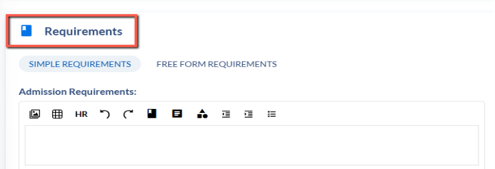
In the Requirements card, scroll down to the bottom of the card and click on ADD+ to add a requirement.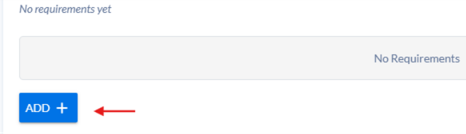
Choose Requirement to add a course requirement, requirement set, or course set or Narrative Text to add free text.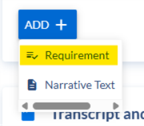
Click on the Untitled Requirement to open the requirement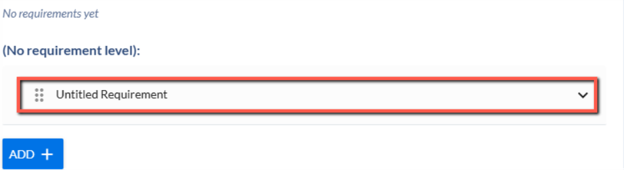
Set the correct Requirement level by going into the drop-down menu – In this Case choosing Program Requirements
Requirement levels are: Admission Requirements, Graduation Requirements, Program Requirements, Program, Total Hours Required, and Subplan.
As soon as you choose this option, the box will close out, and this untitled requirement has now moved up into the Program Requirements Section Above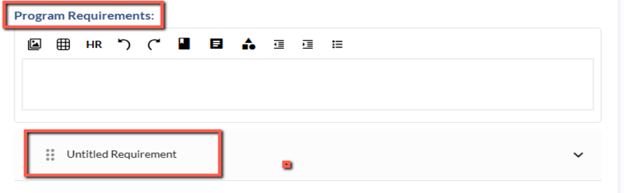
Find the untitled requirement at the requirement level and click on it to open it again.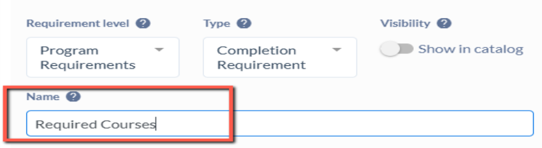
Enter a Name for the requirement and click on the Visibility setting so the requirement will show in the catalog. In the Untitled requirements section you will add the Name: Required Courses
Make sure to click/turn on the Show in Catalog button under Visibility

Click on the Add Requirement Rule option in blue to start building/listing the courses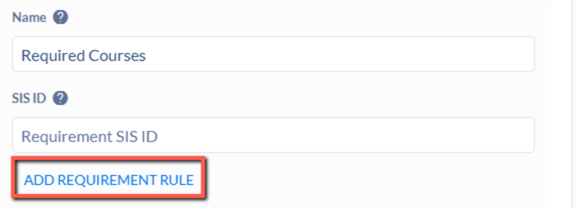
You have some options below for what Rule conditions and Data Types can be available.
Make sure to add the Rule Name – located below the Select Course list - making it the same as the name of the requirement
Requirement Set
If in a major (Associates or Bachelors), insert K-State Core first in the Program Requirements by searching for it under the requirement sets. Requirement Name should be Kansas State University Core: 34-36 Credit Hours. Rule Name should be General Education.
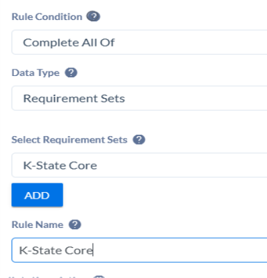
Then click Add.
Courses
These will be the most common option used
Choose the Rule Condition
- Complete All Of
- Complete At Least X of
- Complete Any of
- Minimum Credits
- Number of
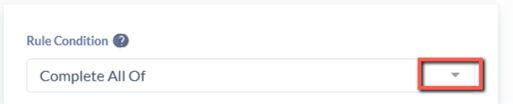
Choose the Data Type of Courses

Start searching for courses:
In the Select Course box, type in the subject and course number.
It may take a second to sync.
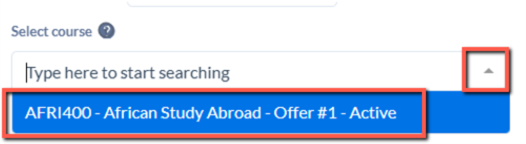
Choose the course by click on it and it will show in the list above the Filter By option. Make sure you choose a course that has “Active” displayed next to the name. Inactive courses will come up in your search, too.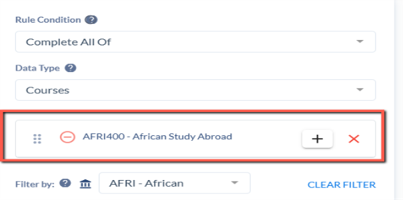
Search for the next course.
Continue on until all courses have been added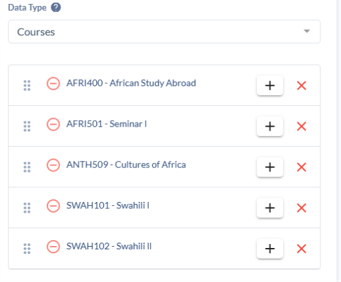
Once completed Stop Editing this section to close it out
ADDING: AND or OR options in the Course List
To link courses together with AND or OR, click on the + to the right of the course. Set the AND or OR by clicking on that box, and then search for the course to link with the first course.
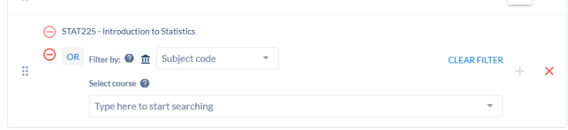
Note: Pay attention to the courses when you search for them and select only active courses.
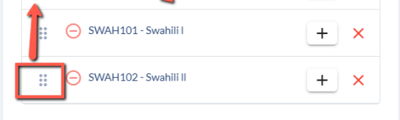
The order of the course list can be changed by clicking and dragging a course to a different location in the list.
Adding Free Text or Notes:
This is for free-text entries – any line in the program requirement that is not an existing course or requirement, or course set will be free-text. (Note: there are currently no course sets built except for K-State Core buckets that are used in degree maps.)
There are two ways to do this:
1. Add the comment under Rule Notes
For this example below, the free text statement that goes with the required course list is best placed in the Rule Notes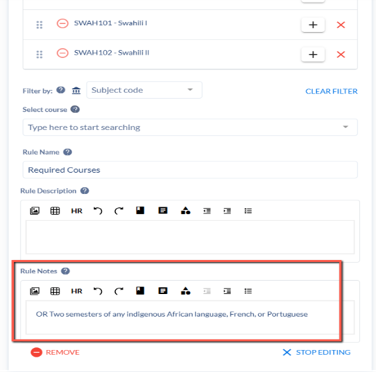
You will see the following in the Catalog View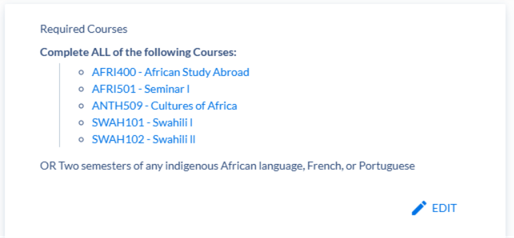
2. ADD Rule Condition: Freeform Text
To add below a current list - Click on ADD Requirement Rule
Rule Condition: Freeform Text and then Enter the Text in the box below
Stop editing the requirement
Continue Process for ALL Remaining Requirements/Sections of the Program/Plan
Continue to create the remainder of the program using this option by creating new Requirement Rules as needed based on the various blocks/sections within your program.
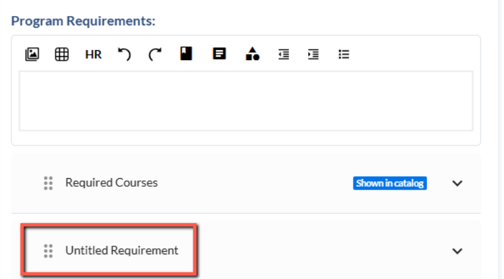
Requirement rules can be rearranged by clicking and dragging to the correct position.
Total Hours Required
Add in the Total Hours in the bottom section of the Requirements Card – located in the Total Hours Required Section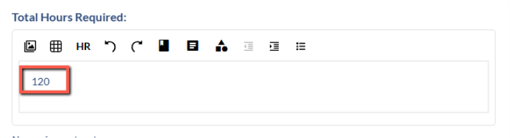
SAVE CHANGES
Catalog Preview
You can see how the requirements will display in the catalog by clicking on Catalog Preview in the right-side menu. This will open the catalog in another browser tab.
Open the Program Requirements tab to see the program requirements.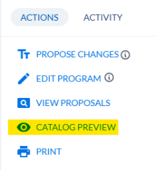
In the 2025-2026 catalog, each subplan had its own page.
In the 2026-2027 catalog in Coursedog, programs that have subplans (called specializations in Coursedog) will have all requirements listed under the main/primary KSIS plan code in Course Dog on the Program Requirements page.
You will have to compare the subplans to determine what requirements are common to all subplans. Those requirements should be entered under the Program Requirements and Major sections. Any requirements that are unique to a subplan should be entered under the Subplan section with separate requirements for each subplan.
For example, the Mathematics (BS) program has 3 subplans for Actuarial Mathematics, Applied Mathematics, and Pure Mathematics. Requirements that are in all 3 subplans are listed under Program Requirements and Major. Requirements unique to each subplan are listed under Subplan with a heading for each subplan.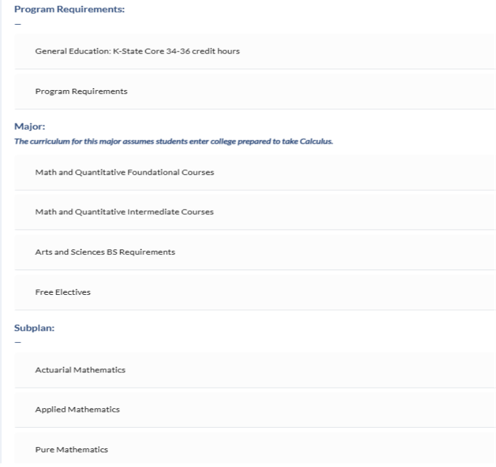
Degree Maps Card
Scroll down in the Program Template to the Degree Maps Card section
Click on + New Map button to start the process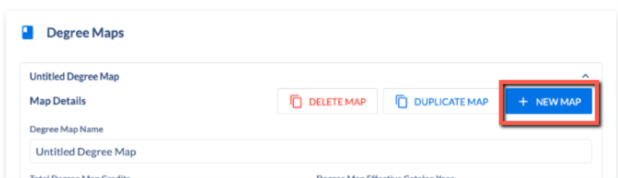
Enter a Degree Map Name and turn on Displayed in Catalog.
Total Degree Map Credits will be calculated as you add courses to the degree map.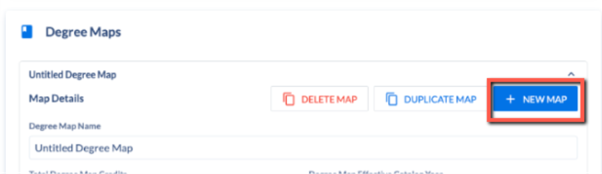
Make sure you choose/click on the Displayed in Catalog button under the Miscellaneous section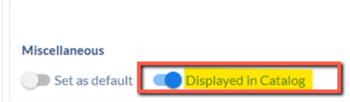
Under the Semester section, you will click on + New Semester to start entering the degree map. 
Select the Year and Semester from the dropdown lists. Actual credits will be calculated as you add courses to the semester.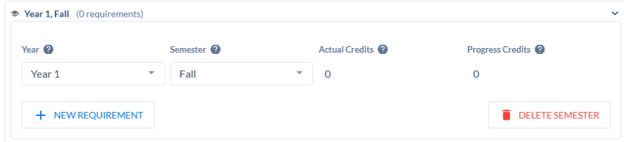
Click on + New Requirement to add each item to the degree map.
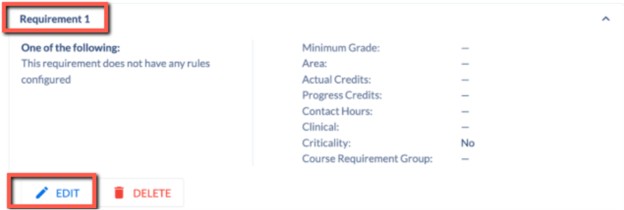
Click on the requirement to open it and then Edit to add the line to the degree map.
Courses:
Set the Requirement Type to Courses and search for a course in the Requirement Select box. Click on the course to select it and add it to the requirement.
Then click Save.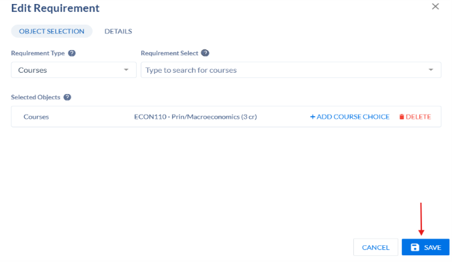
If you need to add an OR option to the requirement, search for the course and click on it to add it. It will be linked to the first course with OR.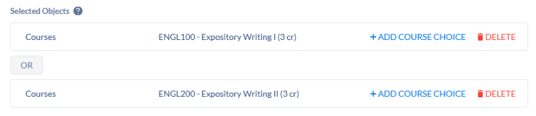
If you need to add an AND option to the requirement, click on + Add Course Choice, search for the course, and click on it to add it. It will be linked to the first course with AND.
If the course is from the K-State Core and will fulfill the general education requirements for this program, add the correct KSC tag for the core by click on the Details tab and entering the KSC tag in the K-State Core field. The tag will display under the course in the degree map. 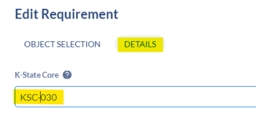
If the course has variable credit hours but needs to have a specific number of credit hours to fulfill the semester credit hours, enter the specific credit hour in the Actual Credits field on the Details tab. In this example, the course has a variable credit range of 0-1 credit hours, but it needs to be set at 1 credit hour to get the correct number of semester hours.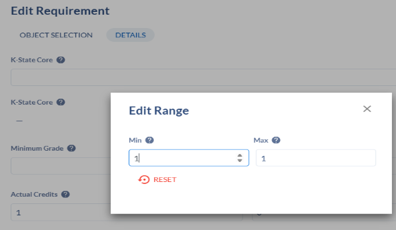
Continue entering courses to complete the semester by adding New Requirement and searching for the courses.
Course sets:
Change Requirement Type to Course Sets and search for the name of the course set in the Requirement Select box. Click on the correct course set to add it.
If the course is from the K-State Core and will fulfill the general education requirements for this program, add the correct KSC tag for the core by click on the Details tab and entering the KSC tag in the K-State Core field. The tag will display under the course in the degree map.
Set the number of credit hours needed for the course set under the Details tab in the Actual Credits box.
Click Save.
Note: Course sets must be set up before searching for them here.
Generic:
- This is for free-text entries – any line in the degree map that is not an existing course or course set will be free-text.
- Change the Requirement Type to Generic. Enter the free-text in the Requirement Select box.
- Set the number of credit hours needed for the course set under the Details tab in the Actual Credits box.
- Click Save.
Continue adding requirements to the semester to complete it.
Add additional semesters and their requirements to complete the degree map.
When the degree map is complete. Click Save Changes in the right-hand menu to save the program and degree map.
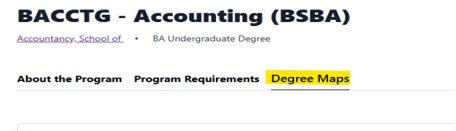
You can see the degree map on the catalog page by clicking Catalog Preview in the right-hand menu to open the catalog page. Click on the Degree Maps tab.
Microcredential Approval Type:
- Term
- Permanent
- Both
Indicate if you are asking to extend a term approval: Yes or No
If Yes: List Rationale for extension
Microcredential Level:
- Undergraduate
- Graduate
- Veterinary Medicine
If this microcredential will be administered by multiple academic units, list the additional units 
Does the microcredential include interdisciplinary learning outcomes: Yes or No
If Yes: List how the interdisciplinary learning outcomes will be assessed?
Microcredential Description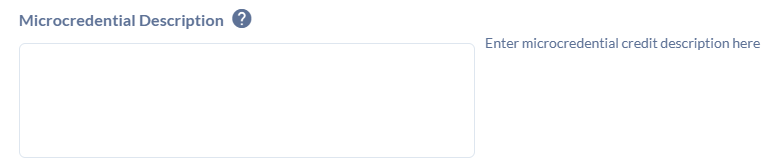
Describe the required additional culminating activity
Attach Microcredential Intake Form
Does the microcredential stack into an existing certificate or degree at K-State: Yes or NO
If Yes, specify program(s):
Was the microcredential approved through a major academic unit's review/approval process?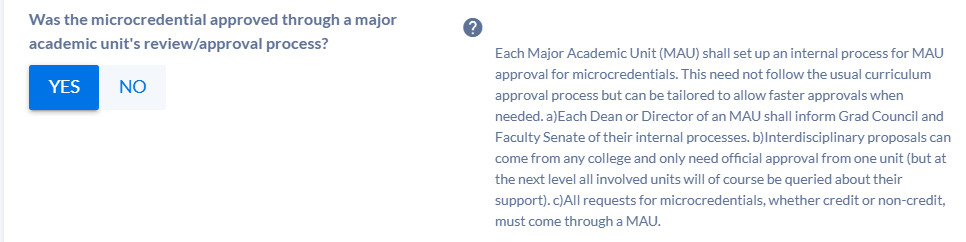
When creating or changing a course proposal, syllabus information must be completed as part of the proposal. Use the Preliminary Syllabus Information card to provide the required course-level information.
Step 1: Open the Preliminary Syllabus Information Card
In the course proposal, locate and open the Preliminary Syllabus Information card.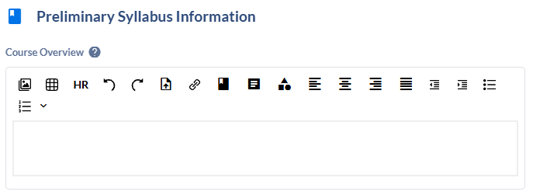
Step 2: Enter the Course Overview — Optional
Use the Course Overview field to provide a general description or additional information about how the course will be delivered.
This field is optional; however, if filled out, it would provide a general overview of the course and expectations
Step 3: Enter Required Textbooks and Equipment — Required
In the Required Textbooks and Equipment field, identify textbooks, materials, equipment, technology, or other resources students will be expected to have for the course.
This field is required.
Required Data Elements: Textbook Title, Author, Year, ISBN
Step 4: Provide a Weekly Course Outline — Required
Enter a general or model schedule showing the anticipated progression of the course by week or instructional period.
Specific calendar dates are not necessary. The outline should provide sufficient information to demonstrate the course's general organization and content. A table may be copied and pasted into this field if desired.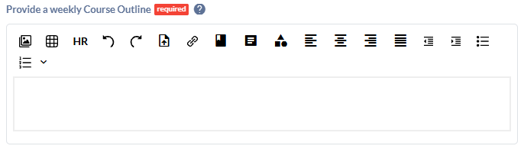
Course Schedule (Model Example)
Provide topic outline. Specific dates not required.
MODULES or DATE(S) |
LEARNING OBJECTIVES(after each module, you will be able to) |
LEARNINGACTIVITIES/ASSESSMENTS
|
REQUIRED RESOURCES |
|
Module 1:
|
[module learning objectives] |
[activities with applicable due dates/times] |
Read: Watch: Other: |
|
Module 2:
|
|
|
|
|
Module 3:
|
|
|
|
|
Module 4:
|
|
|
|
Step 5: Enter Course Assignments — Required
Use the Course Assignments field to identify the major assignments, assessments, projects, examinations, or other graded activities students are expected to complete in the course. This field is required.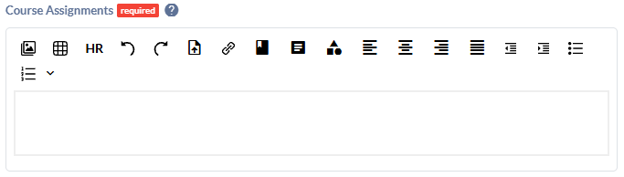
Assignments
Brief summary of each assignment type and expectations.
Insert an overview of each type of assignment along with expectations, points awarded, etc.
All coursework (e.g., assignments, projects, and papers) is available on our Canvas course, and you will submit all coursework there as well. To stay informed about upcoming assignments and exams, we recommend setting up Canvas notifications (see guide here). Additionally, please check the Canvas course calendar regularly to stay updated on course deadlines and events. [insert additional information]
Discussions
Customize or delete if not applicable:
You are required to participate in discussions by posting to each topic with one original post and at least two substantive responses to other participants. A substantive response includes constructive commentary on the post's content, with added material drawn from readings and personal experience (“I agree!” is not enough).
New Program Proposal
Edit Program Proposals
Proposal Cancellation Request
Curriculum Campus Plan Deactivation
Curriculum Program Deactivation
Curriculum Specialization Deactivation
Learning Outcomes
Course Student Learning Outcomes (SLOs) must be created in Coursedog before they can be added to a new or changed course proposal.
You may create the SLOs before beginning the course proposal or while the proposal is still in draft. If you leave a draft proposal to create the SLOs, Coursedog will automatically save your work. You can return to the proposal through Drafts.
Step 1: Open Learning Outcomes
From the Curriculum Management module:
- Select Learning Outcomes from the left-side menu.
- Click + Propose New Learning Outcome.
Step 2: Select the Learning Outcome Form
From the proposal form menu:
- Select Learning Outcomes New.
- Click Submit to open the form.
Step 3: Complete the Required Fields
Complete the following information for the course SLO.
Learning Outcome Name
Enter the course number followed by SLO and a numeric value.
Begin your learning outcome with the Course Number followed by "SLO" then a numeric value. Example: ASI500 SLO 1
Continue the numbering sequence for each additional outcome:
ASI500 SLO 2
ASI500 SLO 3
ASI500 SLO 4
Effective Start Term
Select the same effective start term as the new or changed course proposal.
Leave the Effective End Term blank.
Learning Outcome Description
Enter the complete student learning outcome.
Attribute Level
Select the Attribute Level of Course.
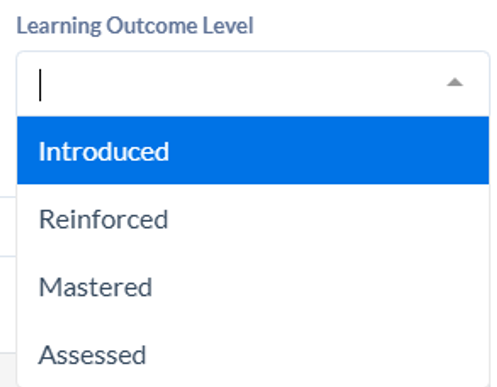
Learning Outcome Level
Select the Learning Outcome Level of Course.
- Introduced: Key concepts, facts, ideas, or foundational skills related to the learning outcome are presented to students for the first time. Focus: Instructional activities focus on introductory-level complexity and entry-level competencies. Students require explicit guidance and support to understand or apply the material
- Reinforced: The learning outcome is strengthened, practiced, and built upon in subsequent coursework after its initial introduction. Focus: Instruction focuses on expanding complexity and enhancing existing skills. Students demonstrate an increasing level of proficiency and a full understanding of the core material, though they may still need assistance with highly challenging or complex applications.
- Mastered: Students achieve full competence in the learning outcome, integrating all necessary knowledge, advanced skills, and professional attitudes. Focus: This represents advanced learning where students are expected to apply content independently, solve sophisticated problems, and operate at the level expected of a graduate completing the program.
- Assessed: A specific educational activity, artifact, or milestone within the course or program is explicitly utilized to measure, evaluate, and collect data on the students' attainment of that learning outcome. Focus: Rather than just noting exposure to content (instruction), this designation signals where formal data collection for institutional assessment or accreditation review takes place (often overlaid on top of "Mastered" or "Reinforced" checkpoints).
Step 4: Submit the Learning Outcome
At the bottom of the form, click Submit Proposal.
After submission, Coursedog will confirm receipt of the proposal. The learning outcome is automatically approved and is ready to be added to the draft course proposal.
Step 5: Create Each Course Learning Outcome
Repeat Steps 1–4 until all SLOs for the course have been created.
Each learning outcome must be created individually before it can be added to the course proposal.
Step 6: Return to the Course Proposal
After creating all SLOs:
- Select Drafts from the left-side menu.
- Open the appropriate course proposal.
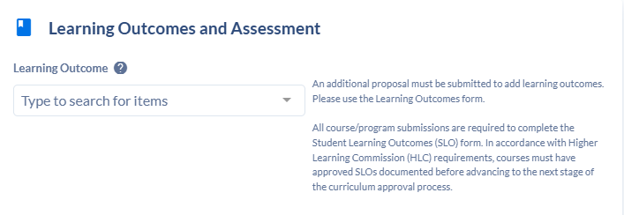
- Navigate to the Learning Outcomes and Assessment card.
Step 7: Add the SLOs to the Course Proposal
In the Learning Outcome field:
- Click Type to search for items.
- Search using the course number.
- Locate the appropriate SLO.
- Select the SLO to add it to the proposal.
Course learning outcomes are identified by the SLO designation.
For example, searching for ASI500 will display the available ASI500 SLOs.
Once an SLO has been selected, it will display within the proposal. You may expand the outcome to review its details.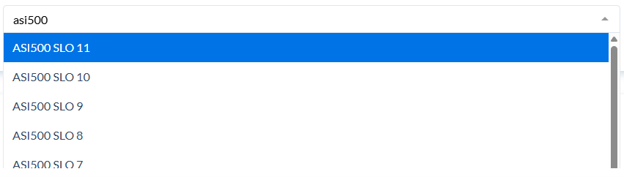
Step 8: Add All Course Learning Outcomes
Repeat Step 7 until all SLOs associated with the course have been added to the proposal.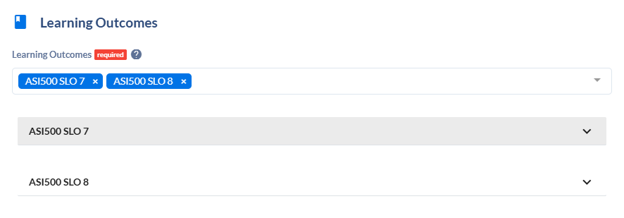
Step 9: Continue or Submit the Course Proposal
Once all required SLOs have been added:
- Continue completing any remaining sections of the course proposal; or
- If the proposal is complete, click Submit Proposal to begin the curriculum approval process.
Important: Course SLOs must be created through the Learning Outcomes process and then selected within the course proposal. Creating the course proposal itself does not create the SLOs.
Course Statewide Transfer Outcomes (SWTs) must be created in Coursedog before they can be added to a new or changed course proposal.
You may create the SWTs before beginning the course proposal or while the proposal is still in draft. If you leave a draft proposal to create the SWTs, Coursedog will automatically save your work. You can return to the proposal through Drafts.
Step 1: Open Learning Outcomes
From the Curriculum Management module:
-
- Select Learning Outcomes from the left-side menu.
- Click + Propose New Learning Outcome.
Step 2: Select the Learning Outcome Form
From the proposal form menu:
-
- Select Learning Outcomes New.
- Click Submit to open the form.
Step 3: Complete the Required Fields
Complete the following information for the course SWT.
Learning Outcome Name
Enter the course number followed by SWT and a numeric value.
Begin your learning outcome with the Course Number followed by "SWT" and then a numeric value.
Example: ENGL100 SWT 1
Continue the numbering sequence for each additional outcome:
- ENGL100 SWT 2
- ENGL100 SWT 3
- ENGL100SWT 4
Effective Start Term
Select the same effective start term as the new or changed course proposal.
Leave the Effective End Term blank.
Learning Outcome Description
Enter the complete Statewide Transfer Outcome (SWT) statement.
KBOR Statewide Transfer Courses, the SLOs MUST be aligned with those listed on the Transfer Kansas Portal > 2nd Tab - Transfer Courses > Core Outcomes
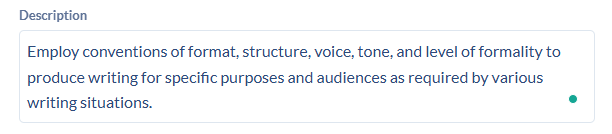
The description above came from the PDF attachment on the Transfer Kansas Portal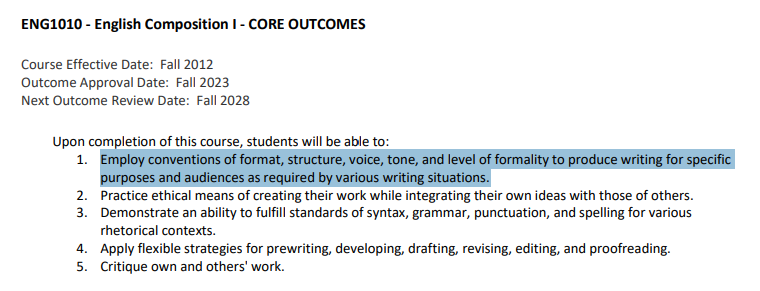
Attribute Level
Select the Attribute Level of Course.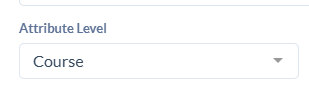
Learning Outcome Level
Select the Learning Outcome Level of Course.
- Introduced: Key concepts, facts, ideas, or foundational skills related to the learning outcome are presented to students for the first time. Focus: Instructional activities focus on introductory-level complexity and entry-level competencies. Students require explicit guidance and support to understand or apply the material
- Reinforced: The learning outcome is strengthened, practiced, and built upon in subsequent coursework after its initial introduction. Focus: Instruction focuses on expanding complexity and enhancing existing skills. Students demonstrate an increasing level of proficiency and a full understanding of the core material, though they may still need assistance with highly challenging or complex applications.
- Mastered: Students achieve full competence in the learning outcome, integrating all necessary knowledge, advanced skills, and professional attitudes. Focus: This represents advanced learning where students are expected to apply content independently, solve sophisticated problems, and operate at the level expected of a graduate completing the program.
- Assessed: A specific educational activity, artifact, or milestone within the course or program is explicitly utilized to measure, evaluate, and collect data on the students' attainment of that learning outcome. Focus: Rather than just noting exposure to content (instruction), this designation signals where formal data collection for institutional assessment or accreditation review takes place (often overlaid on top of "Mastered" or "Reinforced" checkpoints).
Step 4: Submit the Learning Outcome
At the bottom of the form, click Submit Proposal.
After submission, Coursedog will confirm receipt of the proposal. The learning outcome is automatically approved and is ready to be added to the draft course proposal.
Step 5: Create Each Course Statewide Transfer Outcome
Repeat Steps 1-4 until all SWTs for the course have been created.
Each learning outcome must be created individually before it can be added to the course proposal.
Step 6: Return to the Course Proposal
After creating all SWTs:
-
- Select Drafts from the left-side menu.
- Open the appropriate course proposal.
- Navigate to the Learning Outcomes and Assessment card.
Step 7: Add the SWTs to the Course Proposal
In the Learning Outcome field:
- Click Type to search for items.
- Search using the course number.
- Locate the appropriate SWT.
- Select the SWT to add it to the proposal.
Course statewide transfer outcomes are identified by the SWT designation.
For example, searching for ASI500 will display the available ENGL100 SWTs.
Once an SWT has been selected, it will be displayed in the proposal. You may expand the outcome to review its details.
Step 8: Add All Course Statewide Transfer Outcomes
Repeat Step 7 until all SWTs associated with the course have been added to the proposal.
Step 9: Continue or Submit the Course Proposal
Once all required SWTs have been added:
- Continue completing any remaining sections of the course proposal; or
- If the proposal is complete, click Submit Proposal to begin the curriculum approval process.
Important: Course SWTs must be created through the Learning Outcomes process and then selected within the course proposal. Creating the course proposal itself does not create the SWTs.
Course Student Learning Outcomes (SLOs) must be created in Coursedog before they can be added to a new or changed course proposal.
You may create the SLOs before beginning the course proposal or while the proposal is still in draft. If you leave a draft proposal to create the SLOs, Coursedog will automatically save your work. You can return to the proposal through Drafts.
To support reporting, assessment, accreditation requirements, and system consistency across Coursedog modules, all Course Student Learning Outcomes (SLOs) must follow an approved institutional naming convention.
Step 1: Open Learning Outcomes
From the Curriculum Management module:
- Select Learning Outcomes from the left-side menu.
- Click + Propose New Learning Outcome.
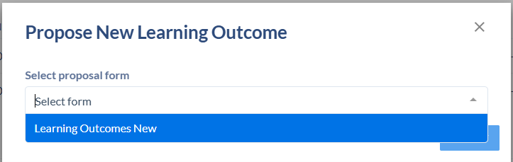
Step 2: Select the Learning Outcome Form
From the proposal form menu:
- Select Learning Outcomes New.
- Click Submit to open the form.
Step 3: Complete the Required Fields
Complete the following information for the course SLO.
Learning Outcome Name
Accreditation-Based SLO Naming Convention
Courses with learning outcomes tied to an accrediting body should preserve the accreditation reference within the title using the following format:
Accreditation-Based: Course Prefix/Number + SLO + Number: + Accrediting Acronym
- Example: CNS410 SLO 1: <description> (ACCE 1)
- OR CNS SLO 1: <description> (ACCE 1) (if the accreditation SLO applies to all courses in that prefix/subject code)
This format:
- Identifies the specific course.
- Preserves the accrediting body designation.
- Distinguishes Student Learning Outcomes (SLOs) from Program Learning Outcomes (PLOs).
- Ensures learning outcomes can be correctly assigned, reported, assessed, and connected to other curriculum and assessment modules within Coursedog.
Important: Place the accreditation acronym immediately after the SLO designation. Departments should use a consistent acronym for all outcomes associated with the same accrediting body.
Effective Start Term
Select the same effective start term as the new or changed course proposal.
Leave the Effective End Term blank.
Learning Outcome Description
Enter the complete student learning outcome.
Attribute Level
Select the Attribute Level of Course.
Learning Outcome Level
Select the Learning Outcome Level of Course.
- Introduced: Key concepts, facts, ideas, or foundational skills related to the learning outcome are presented to students for the first time. Focus: Instructional activities focus on introductory-level complexity and entry-level competencies. Students require explicit guidance and support to understand or apply the material
- Reinforced: The learning outcome is strengthened, practiced, and built upon in subsequent coursework after its initial introduction. Focus: Instruction focuses on expanding complexity and enhancing existing skills. Students demonstrate an increasing level of proficiency and a full understanding of the core material, though they may still need assistance with highly challenging or complex applications.
- Mastered: Students achieve full competence in the learning outcome, integrating all necessary knowledge, advanced skills, and professional attitudes. Focus: This represents advanced learning where students are expected to apply content independently, solve sophisticated problems, and operate at the level expected of a graduate completing the program.
- Assessed: A specific educational activity, artifact, or milestone within the course or program is explicitly utilized to measure, evaluate, and collect data on the students' attainment of that learning outcome. Focus: Rather than just noting exposure to content (instruction), this designation signals where formal data collection for institutional assessment or accreditation review takes place (often overlaid on top of "Mastered" or "Reinforced" checkpoints).

Step 4: Submit the Learning Outcome
At the bottom of the form, click Submit Proposal.
After submission, Coursedog will confirm receipt of the proposal. The learning outcome is automatically approved and is ready to be added to the draft course proposal.
Step 5: Create Each Course Learning Outcome
Repeat Steps 1–4 until all SLOs for the course have been created.
Each learning outcome must be created individually before it can be added to the course proposal.
Step 6: Return to the Course Proposal
After creating all SLOs:
- Select Drafts from the left-side menu.
- Open the appropriate course proposal.
- Navigate to the Learning Outcomes and Assessment card.

Step 7: Add the SLOs to the Course Proposal
In the Learning Outcome field:
- Click Type to search for items.
- Search using the course number.
- Locate the appropriate SLO.
- Select the SLO to add it to the proposal.
Course learning outcomes are identified by the SLO designation.
For example, searching for ASI500 will display the available ASI500 SLOs.
Once an SLO has been selected, it will display within the proposal. You may expand the outcome to review its details.
Step 8: Add All Course Learning Outcomes
Repeat Step 7 until all SLOs associated with the course have been added to the proposal.
Step 9: Continue or Submit the Course Proposal
Once all required SLOs have been added:
- Continue completing any remaining sections of the course proposal; or
- If the proposal is complete, click Submit Proposal to begin the curriculum approval process.
Important: Course SLOs must be created through the Learning Outcomes process and then selected within the course proposal. Creating the course proposal itself does not create the SLOs.
Program Learning Outcomes (PLOs) must be created in Coursedog before they can be added to a new or changed program proposal.
You may create the PLOs before beginning the program proposal or while the proposal is still in draft. If you leave a draft proposal to create the PLOs, Coursedog will automatically save your work. You can return to the proposal through Drafts.
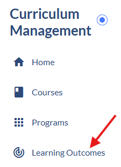
Step 1: Open Learning Outcomes
From the Curriculum Management module:
- Select Learning Outcomes from the left-side menu.
- Click + Propose New Learning Outcome.
Step 2: Select the Learning Outcome Form
From the proposal form menu:
- Select Learning Outcomes New.
- Click Submit to open the form.
Step 3: Complete the Required Fields
Complete the following information for the program PLO.
Learning Outcome Name
Enter the program code followed by PLO and a numeric value.
Program code =
A: Associates
B: Bachelor
C: Certificate
D: Doctoral
E: EdD or EdS
M: Masters
R: Minor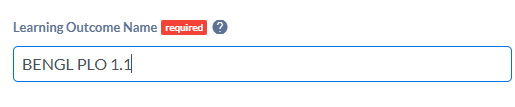
Begin your learning outcome with Program Code followed by "PLO" then a numeric value.
Example: BENGL PLO 1
Continue the numbering sequence for each additional outcome:
BENGL PLO 2
BENGL PLO 3
BENGL PLO 4
Effective Start Term
- Select the same effective start term as the new or changed program proposal.
- Leave the Effective End Term blank.

Learning Outcome Description
Enter the complete Program Learning Outcome.

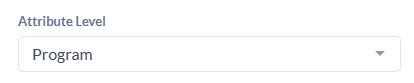
Attribute Level
- Select the Attribute level: Program.
Step 4: Submit the Learning Outcome
At the bottom of the form, click Submit Proposal.
After submission, Coursedog will confirm that the proposal has been submitted. The PLO is automatically approved and is then available to add to the draft program proposal.
Step 5: Create Each Program Learning Outcome
Repeat Steps 1–4 until all PLOs for the program have been created.
Each PLO must be created individually before it can be added to the program proposal.
Step 6: Return to the Program Proposal
After creating all PLOs:
Select Drafts from the left-side menu.
- Open the appropriate program proposal.
- Navigate to the Learning Outcomes and Assessment card.
Step 7: Add the PLOs to the Program Proposal
In the Learning Outcome field:
- Click Type to search for items.
- Search using the program code.
- Locate the appropriate PLO.
- Select the PLO to add it to the proposal.
Program learning outcomes are identified by the PLO designation. For example, searching for BMCB will display the available BMCB PLOs.
Once a PLO has been selected, it will display within the proposal. You may expand the outcome to review its details.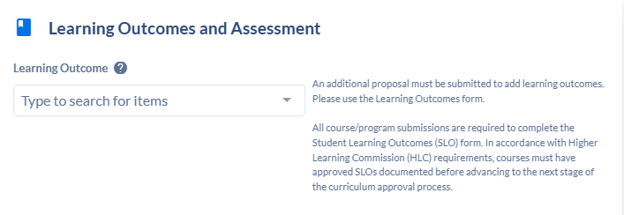
Step 8: Add All Program Learning Outcomes
Repeat Step 7 until all PLOs associated with the program have been added to the proposal.
Step 9: Attach the Required Assessment Documents
Navigate to the Assessment Attachments card.
Use the paperclip/Add Files option to attach the required program assessment documents:
- Assessment Plan
- Map to University Outcomes
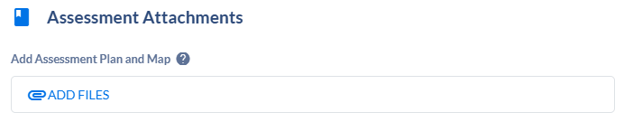
Step 10: Continue or Submit the Program Proposal
Once all PLOs and required assessment documents have been added:
- Continue completing any remaining sections of the program proposal; or
- If the proposal is complete, click Submit Proposal to begin the curriculum approval process.
Important: Program PLOs must be created through the Learning Outcomes process and then selected within the program proposal. The Assessment Plan and Map to University Outcomes must also be attached to the program proposal before submission.
Program Learning Outcomes (PLOs) must be created in Coursedog before they can be added to a new or changed program proposal.
You may create the PLOs before beginning the program proposal or while the proposal is still in draft. If you leave a draft proposal to create the PLOs, Coursedog will automatically save your work. You can return to the proposal through Drafts.
To support reporting, assessment, accreditation requirements, and system consistency across Coursedog modules, all Program Learning Outcomes (PLOs) must follow an approved institutional naming convention.
Step 1: Open Learning Outcomes
From the Curriculum Management module:
- Select Learning Outcomes from the left-side menu.
- Click + Propose New Learning Outcome.

Step 2: Select the Learning Outcome Form
From the proposal form menu:
- Select Learning Outcomes New.
- Click Submit to open the form.

Step 3: Complete the Required Fields
Complete the following information for the program PLO.
Learning Outcome Name
Enter the program code followed by PLO and a numeric value.
Program code =
A: Associates
B: Bachelor
C: Certificate
D: Doctoral
E: EdD or EdS
M: Masters
R: Minor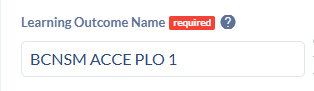
Accreditation-Based PLO Naming Convention
Programs with learning outcomes tied to an accrediting body should preserve the accreditation reference within the title using the following format:
ccreditation-Based: Program Prefix + Accrediting Acronym + PLO + Number
- Example: BCNSM PLO 1: <description> (ACCE 1)
Continue the numbering sequence for each additional outcome:
BCNSM PLO 2: <description> (ACCE 2.a)
BCNSM PLO 3: <description> (ACCE 3.a)
BCNSM PLO 4: <description> (ACCE 4)
This format:
- Identifies the academic program.
- Preserves the accrediting body designation.
- Distinguishes Program Learning Outcomes (PLOs) from Student Learning Outcomes (SLOs).
- Ensures learning outcomes can be correctly assigned, reported, and assessed within Coursedog and related systems.
Important: Place the accreditation acronym immediately after the PLO designation. Departments should use a consistent acronym for all outcomes associated with the same accrediting body.
Effective Start Term
- Select the same effective start term as the new or changed program proposal.
- Leave the Effective End Term blank.

Learning Outcome Description
Enter the complete Program Learning Outcome.

Attribute Level
- Select the Attribute level: Program.

Step 4: Submit the Learning Outcome
At the bottom of the form, click Submit Proposal.
After submission, Coursedog will confirm that the proposal has been submitted. The PLO is automatically approved and is then available to add to the draft program proposal.
Step 5: Create Each Program Learning Outcome
Repeat Steps 1–4 until all PLOs for the program have been created.
Each PLO must be created individually before it can be added to the program proposal.
Step 6: Return to the Program Proposal
After creating all PLOs:
Select Drafts from the left-side menu.
- Open the appropriate program proposal.
- Navigate to the Learning Outcomes and Assessment card.
Step 7: Add the PLOs to the Program Proposal
In the Learning Outcome field:
- Click Type to search for items.
- Search using the program code.
- Locate the appropriate PLO.
- Select the PLO to add it to the proposal.
Program learning outcomes are identified by the PLO designation. For example, searching for BMCB will display the available BMCB PLOs.
Once a PLO has been selected, it will display within the proposal. You may expand the outcome to review its details.
Step 8: Add All Program Learning Outcomes
Repeat Step 7 until all PLOs associated with the program have been added to the proposal.
Step 9: Attach the Required Assessment Documents
Navigate to the Assessment Attachments card.
Use the paperclip/Add Files option to attach the required program assessment documents:
- Assessment Plan
- Map to University Outcomes

Step 10: Continue or Submit the Program Proposal
Once all PLOs and required assessment documents have been added:
- Continue completing any remaining sections of the program proposal; or
- If the proposal is complete, click Submit Proposal to begin the curriculum approval process.
Important: Program PLOs must be created through the Learning Outcomes process and then selected within the program proposal. The Assessment Plan and Map to University Outcomes must also be attached to the program proposal before submission.
Training Videos
- Program Proposal: New, Edit, and Deactivation VIDEO
- Course Proposal: New, Edit, and Deactivation VIDEO
- Agendas: Creating, Editing, and Viewing VIDEO
- Approver Training
Supplemental Forms:
| Documents | Doc Type | Description | Last Update |
| Interdisciplinary Program Concept Paper Template | This form must be used in preparing a new interdisciplinary program concept paper for presentation to the dean's council. | January 2017 |
Policies and procedures for new program approval are found in Chapter II, Section A.7. of the Policy Manual.
| Documents | Doc Type |
Description |
Last Update |
| KBOR New Program Proposal Form | Word Doc | Access this form for all bachelor's and master's proposals | March 2025 |
| KBOR New Program Proposals | Contact Samantha Christy-Dangermond about the doctoral program form | Doctoral Programs | March 2025 |
Left Hand Side Menu > Curriculum Management > Campus
Choose the appropriate document type:
- New Microcredential NonCredit
- Program Tracking Code Request
- CIP Code Change Form
- Elective List Update
- Course Topics Form
- New Prefix Form
CAPP Form(s):