Print Schedule of Classes
| Purpose | Use this procedure to print the Schedule of Classes (or a subset of the entire Schedule relating to your College or Department). This is performed when reviewing the current status of an upcoming term’s schedule or when reviewing a previous term’s schedule in preparation for an upcoming term setup. |
| Menu Path |
Curriculum Management > Schedule of Classes > Print Class Schedule |
| Field Definitions |
Included with each step are definitions of the fields used in that step. Click on Field Definitions to display or hide the field definitions. |
Procedure
- In KSIS, navigate to Curriculum Management > Schedule of Classes > Print Class Schedule
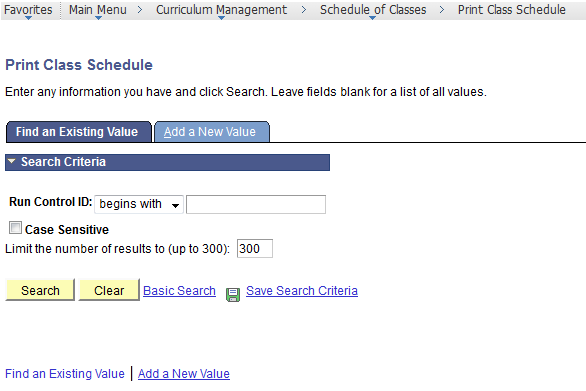
- To use an existing Run Control ID, enter the Run Control ID name and click
 . To create a new Run Control ID, click the Add a New Value tab, enter the name for the new Run Control ID and click
  . Either of these processes take you to the Print Class Schedule Selection Criteria area where it is possible to enter or select the desired options.
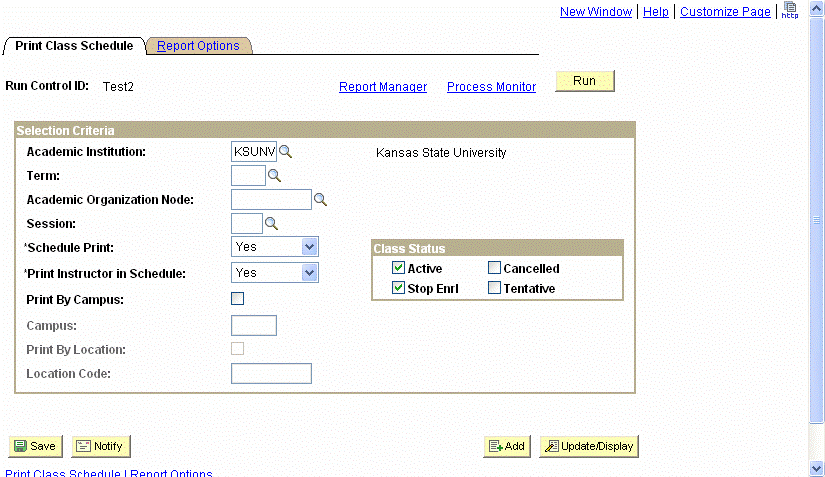
- Click
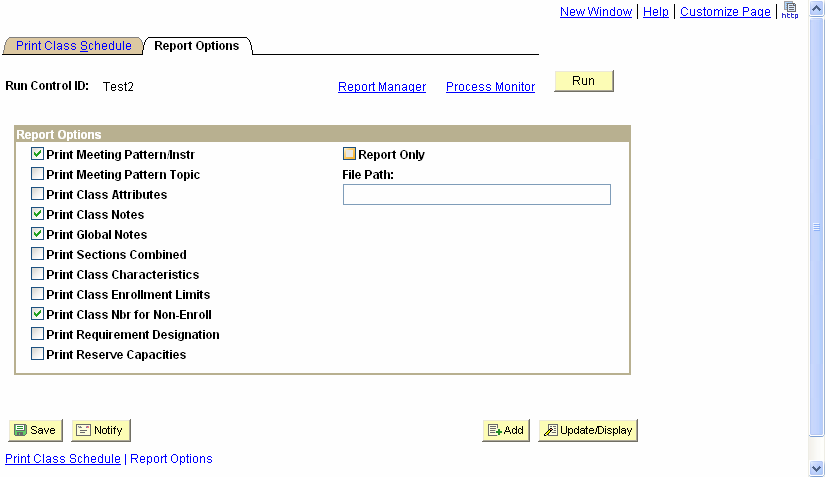
 to view the Report Options area. Select the desired options for the report. It is possible to select different options for each Run Control ID.
- Click
 to open the Process Scheduler Request area. The Class Schedule Print request is initiated here. Change the Server Name to PSUNX. By default there is no need to change the Recurrence or Time Zone
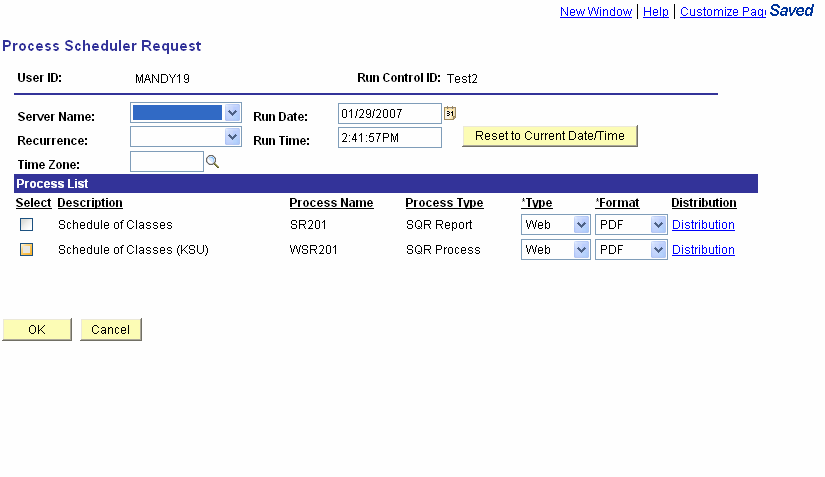
- Click the check box (
 ) by the Schedule of Classes (KSU) (WSR201)option. This selects running the K-State specific Class Schedule.
- Click
 to return to the Report Options page.
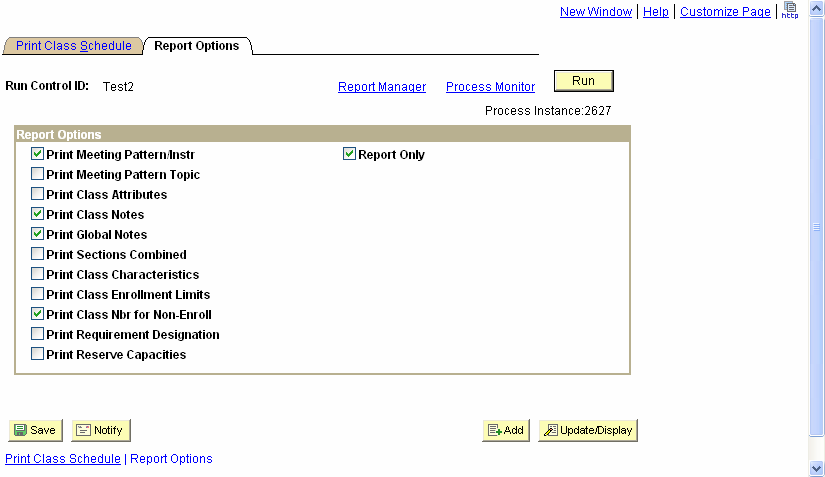
- Click the Report Manager link to go to the Reports area.
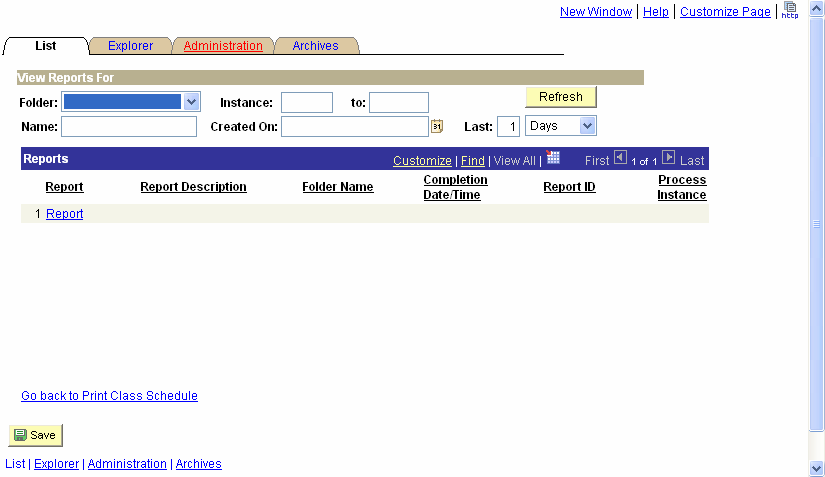
- Click
 to view Reports that have been run. The page may need refreshing multiple times before the report Status says Posted.
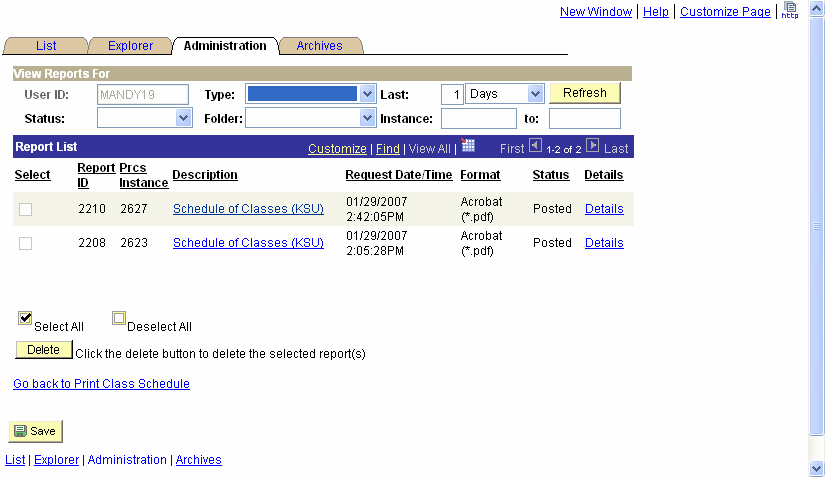
- Perform one of the following:
If Then Status of the Request is Posted Proceed with Step 10. Otherwise Click Refresh until status changes to Posted. - Click Schedule of Classes (KSU).
The system opens another browser window and launches a PDF document (or the document format selected).
- The Schedule is now available to print. From the open browser window, print the Schedule fore review by the Department Head or Dean's Office.
 and enter the name to create it.
 Always check this value.