Adding tables
- Click the Edit button for the region you want to add the table. See Editing a page for more information.
- Place the cursor on the page where you want to add a table.
-
On the web page editor, click the Insert table icon to open menu.

-
In the grid, highlight the number of columns and rows you want in the table. You can easily add more later if needed.
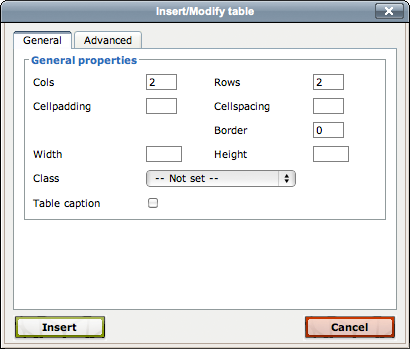
- Width and Height can be adjusted in Table properties.
Note: If using percentages, the percent sign (%) must follow the number. - The Cellpadding, Cellspacing, Border boxes will usually be left empty or set to 0.
- Click the Insert button.