
Division of Information Technology
*Remove this*
How can we help?
Get Help:Search Knowledge Base•Submit a Help Ticket•View My Tickets•Live Chat

Are you staying safe?
Scams seem to pop up every day, and K-Staters are often targets. From phishing emails to AI-generated deepfakes that mimic someone’s face and voice, it can be hard to know what’s real and what’s not.
Our biggest tip? Pause before you act. Take a moment to think before responding to unexpected messages, especially those that create a sense of urgency or ask for payment, your username or password, or other sensitive information. A little extra caution can go a long way toward keeping you and K-State safe. Learn more about cybersecurity best practices.
IT Services and Resources
What's Happening
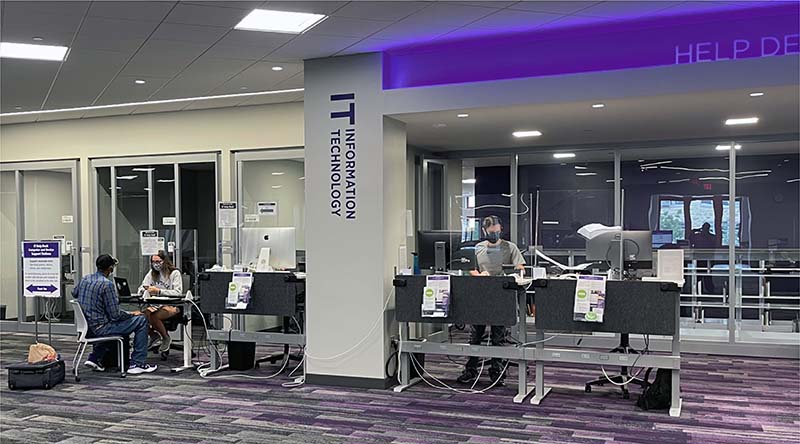
Get a quick overview of the IT services and resources available to you at K-State.
Learn the steps you can take to keep your computer secure and your information safe.
