Start using the new calendar in Microsoft Teams
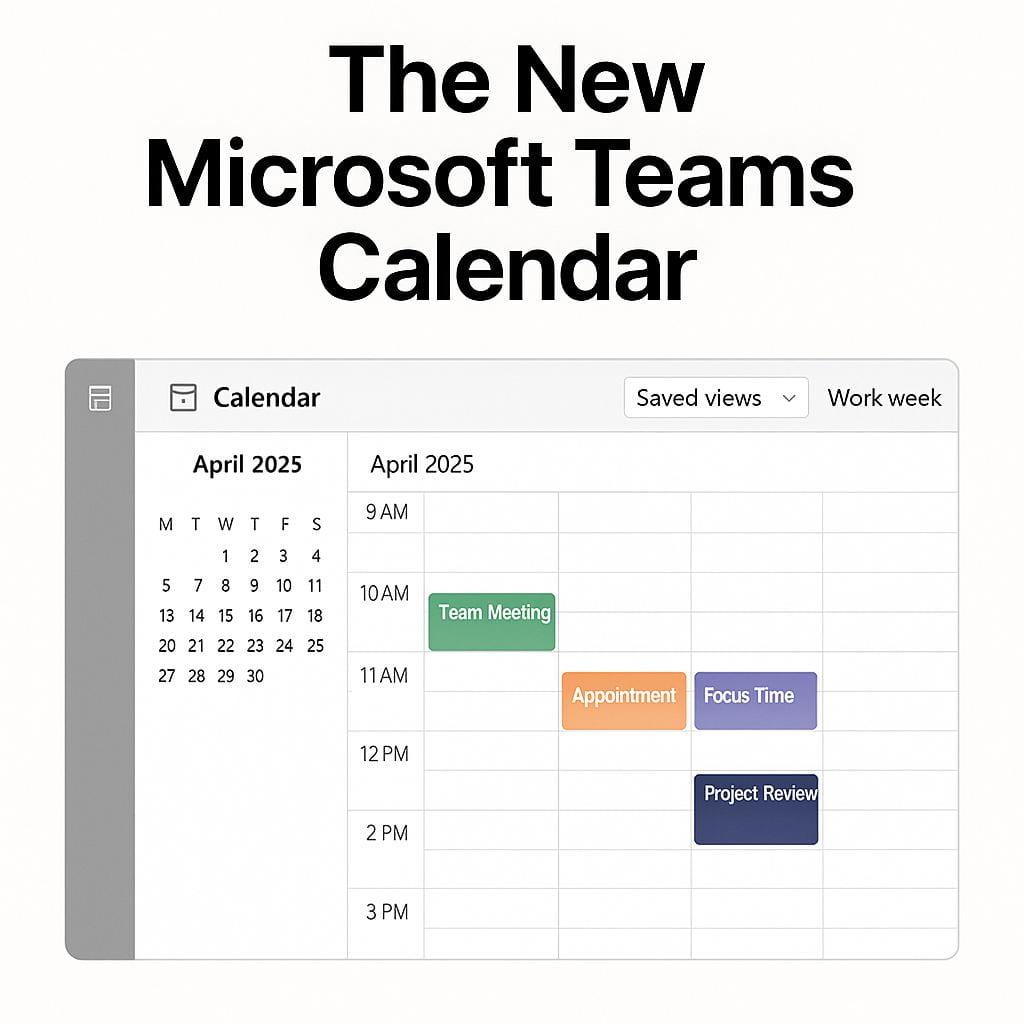 Microsoft Teams has released an enhanced version of the calendar. You will notice streamlined scheduling, custom calendar views, adjustable time scale, and more.
Calendar Views
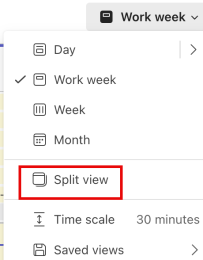
Your Teams calendar will display your work week schedule by default, but you can select from various views by clicking the Views list at the top of the calendar.
In the new calendar, you can view multiple calendars at the same time by doing the following:
- In the top left corner, select Show navigation pane
- Under My calendars, click Show all.
- Select the calendar you want to view.
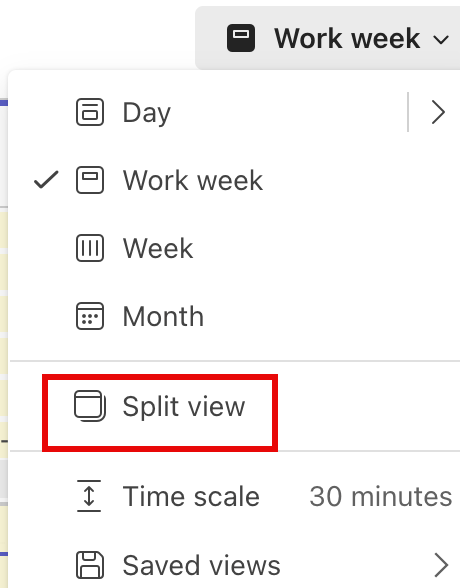
- Under the Calendar View list, select Split View to see other calendars side-by-side or integrated into one.

Apply Filters
At the top of your calendar, click the Filter list and select from the following filters:
- Appointments
- Meetings
- Categories
- Show as
- Recurrence
- In-person
More Options
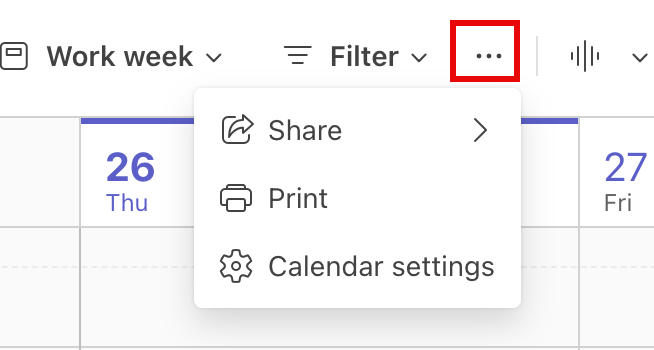
Under More Options (3 dots at the top the calendar), you can share calendars, print or customize your settings.
 |
Schedule and start meetings and events
Easily schedule meetings or events from the new calendar.
To schedule a new meeting or event:
- Select the dropdown arrow next to New event and then choose the type of event you want to create.
- Select Scheduling Assistant to find a time that works best for everyone.
- Enter meeting or event details.
- Select Save.
Note: You can quickly add an event by clicking a time slot on your calendar and filling in the details. Click More Options to expand the event view.