How to get more out of OneNote
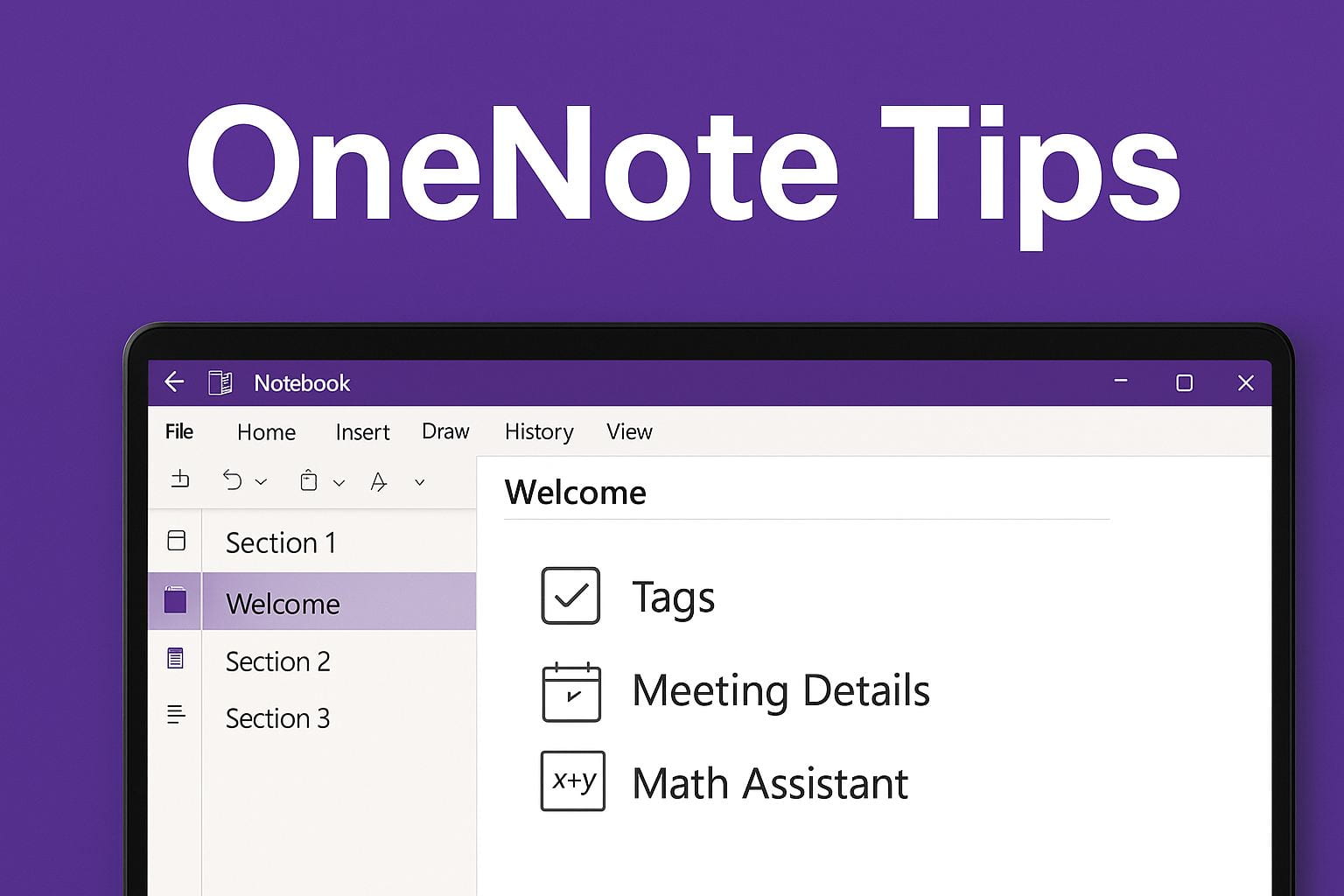 Microsoft OneNote isn’t just a note-taking app—it’s a flexible tool that can help you stay organized and get more done. Whether you’re managing research, meeting notes or to-do lists, these tips will take your skills to the next level.
Create Section Groups to Stay Organized
Section groups keep related sections together. A section group can hold as many sections as you want, along with all their pages, so you won’t lose a thing.
- Right-click in the notebook panel.
- Click New Section Group and give it a name.
- Click Add Section to create a subsection under the group name.
- Continue adding as many subsections as needed.
This feature is only available in the desktop apps.
Link to sections
Double braces [[Projects]] can be used to link your notebook’s section named Projects. Be sure that you don’t have any sections that are named the same.
This feature is only available in the web app.
Tag Important Items (or Create Your Own Tags)
Tags make it easy to spot to-dos, questions, follow-ups, and more.
- Highlight text.
- On the Home tab, select a tag like To Do, Important, or Question.
Custom Tags
- Hover over the tags button and then click the dropdown arrow.
- Click Customize Tags.
This feature is only available in the desktop apps.
Insert Meeting Details from Outlook
Turn calendar events into notes in seconds.
- On the Insert menu, click Meeting Details.
- Choose the meeting from your Outlook calendar.
OneNote pulls in the date, attendees and agenda so you can start taking notes right away.
Use Version History to Track Changes
Accidentally deleted something? No problem.
Right-click on the page and choose Page Versions. OneNote shows a history of edits with timestamps, so you can restore an earlier version.
Password-Protect a Section
Add an extra layer of privacy for sensitive notes.
Right-click the section tab and choose Password Protect This Section. Set a password. You’ll need it to unlock the section going forward.
Translate Text Instantly
Highlight the text, right-click, then choose Translate. You can choose the language and insert the translation into your notes.
Embed Microsoft Forms to Collect Info
Gather feedback or run a quiz right from your notebook.
On the Insert menu, click Forms and then sign in to select a form you’ve created or create a new one. It embeds directly in your page.
This feature isn’t available in OneNote for Mac.

Want more tech tips to boost your day-to-day? Bookmark the
IT News blog and follow us on Twitter @KStateIT
for new updates and how-tos.