View Compensation History in HRIS
To view your compensation total in HRIS, follow these easy steps:
1. Log in to HRIS using your eID/password.
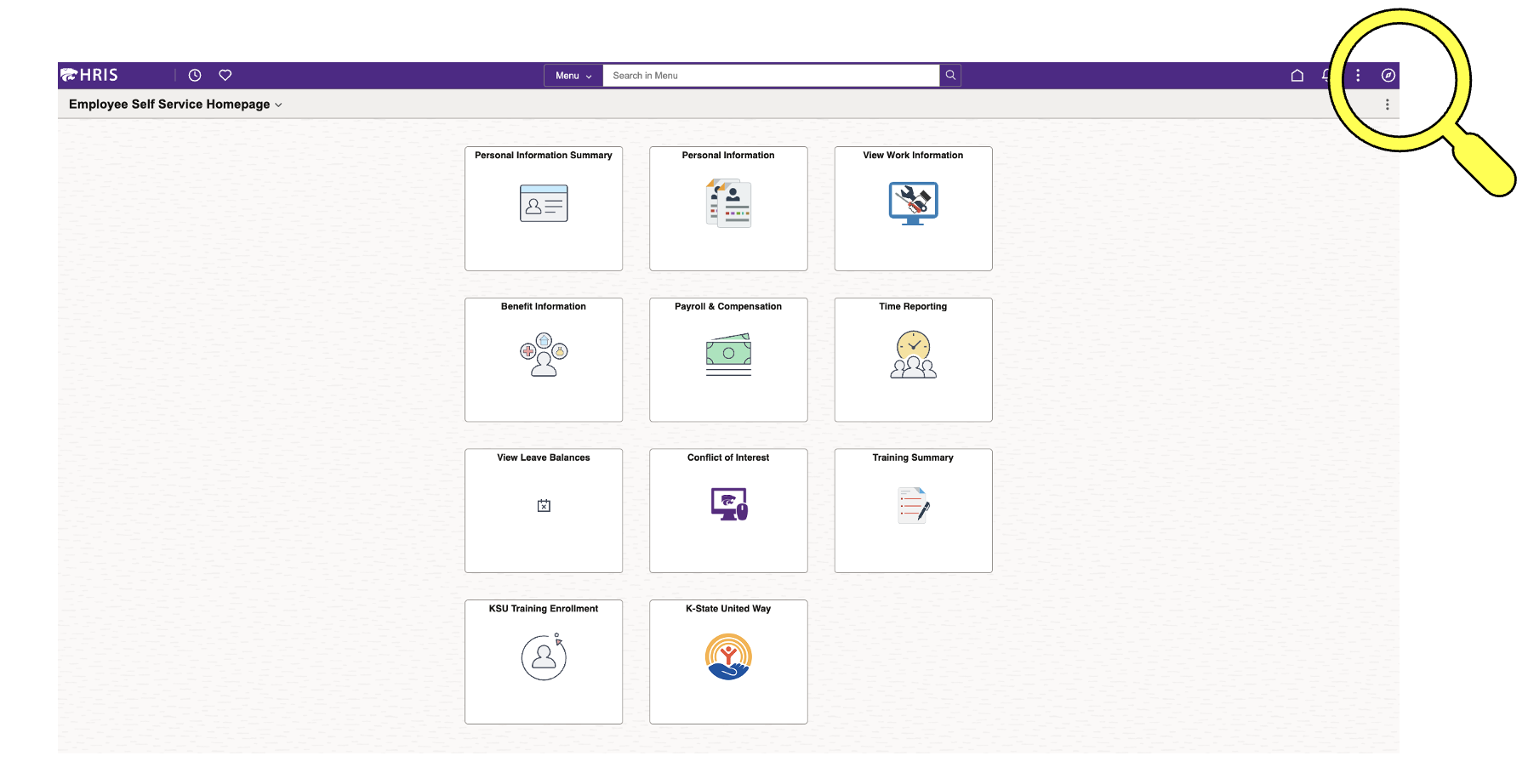
2. Navigate to the HRIS NavBar.
The NavBar is accessed by clicking on a circular icon with a diamond in its center in the upper right hand corner of your browser window. Click on the icon once you locate it.
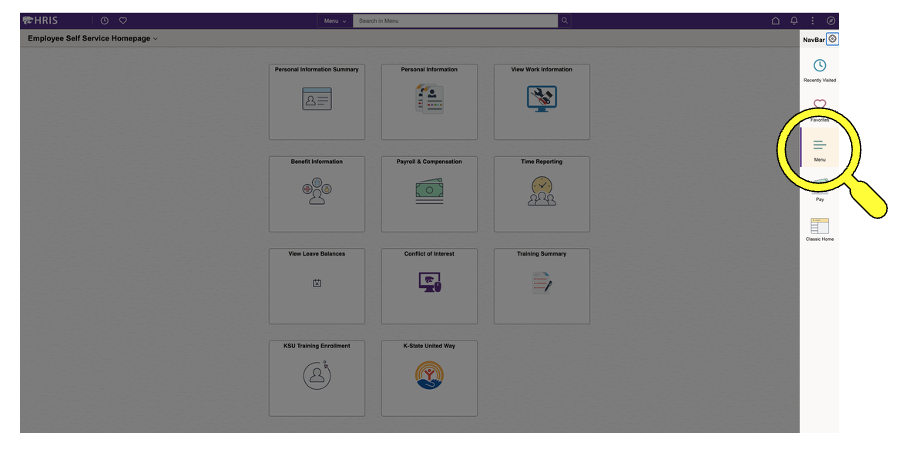
3. Select "Menu" in the NavBar.
After you select the NavBar icon, a series of icons will appear down the right-hand side of your browser window. Select the icon labeled "Menu".
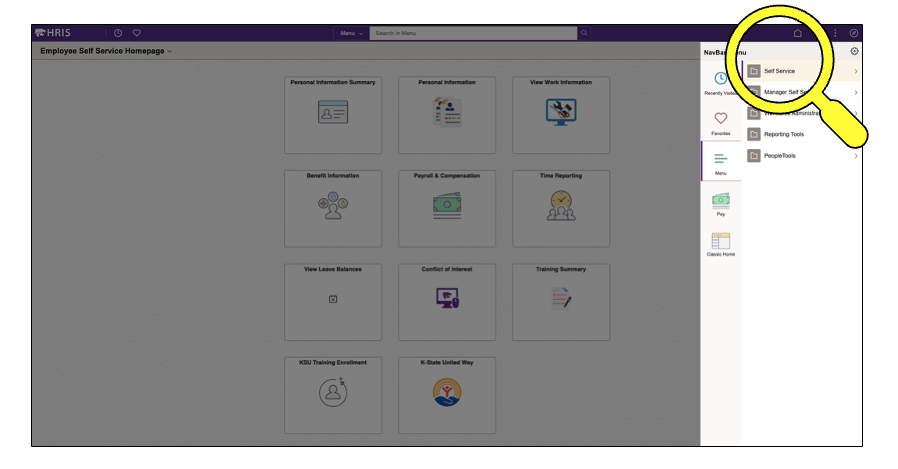
4. Select "Self Service" in the NavBar.
After selecting "Menu", you will now see additional links to choose from on the right. Select "Self Service" from that sub-menu.
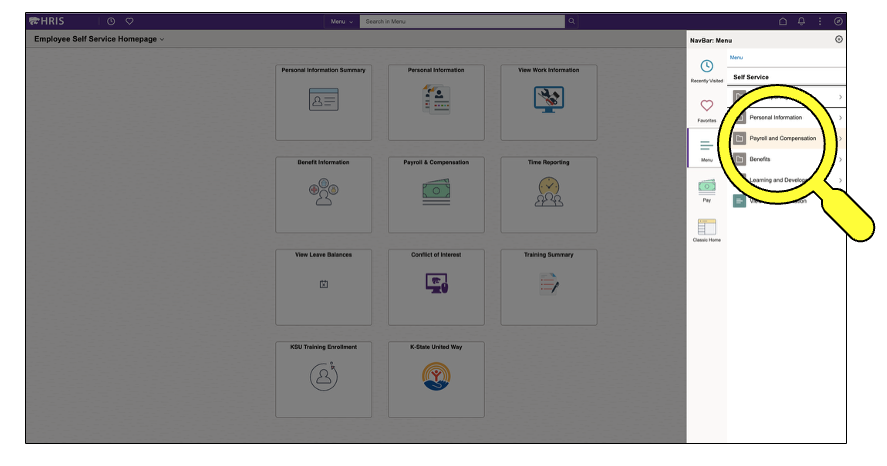
5. Select "Payroll and Compensation" in the NavBar.
Next, under Self-Service, select "Payroll and Compensation."
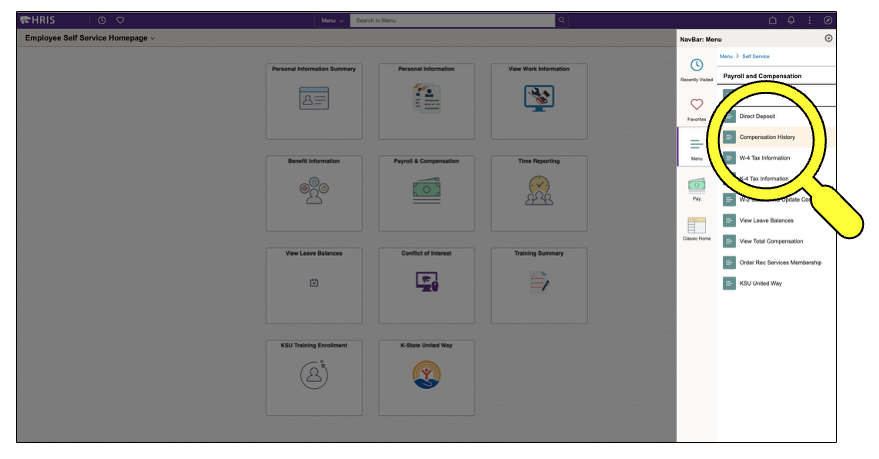
6. Select "Compensation History" in the NavBar.
Finally, under Payroll and Compensation, select "Compensation History". This will open up a window showing your current compensation and past compensation levels.
Please note that this only reflects base salary at present. Any applicable stipend(s) or additional pay(s) would not be reflected in this summary. HR is actively working to make this compensation history more comprehensive, and faculty and staff can expect a roll-out of that expanded view sometime in summer 2026.
Questions?
If you have any questions, do not hesitate to contact your HR liaison or budget fiscal officer.