Email Students from Class Roster
- From the KSIS Home Page, to the right, in the KSIS Links box, click Faculty Center.

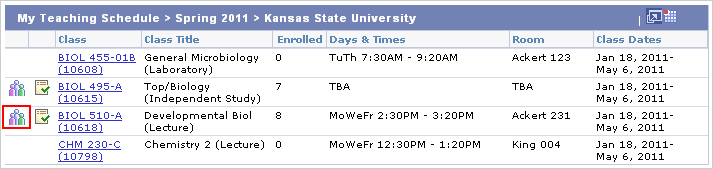
- Click the Class Roster icon
 to the left of the class you want to view.
NOTE: This symbol displays only after students have enrolled in the section.
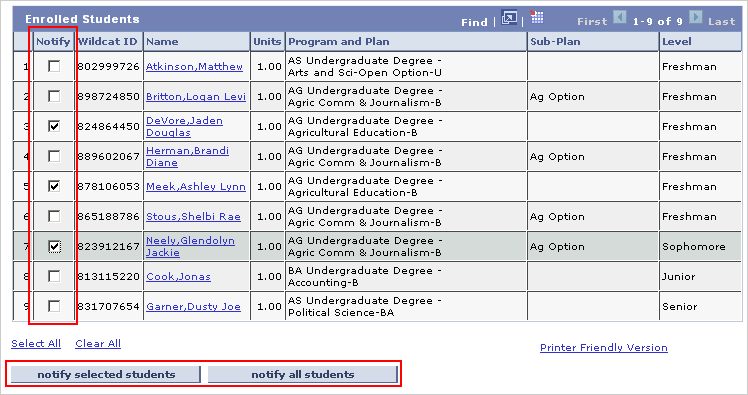
- Check the box(es) in the Notify column to the left of each student you want to contact.
- Click Notify Selected Students, or click the Notify All Students button to send a message to the entire class.
- Alter the Subject, enter any Message Text, and click the Send Notification button.
NOTE: This process will send a message to you, as the instructor with a Blind Carbon Copy to each selected student so that students will not be able to see who else has received the message.
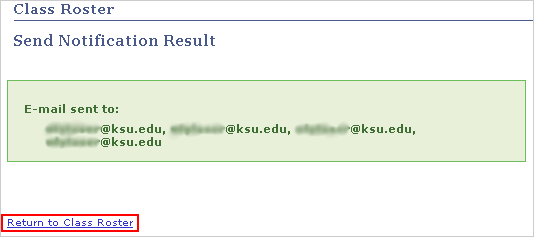
- Click the Return to Class Roster link on the confirmation page.