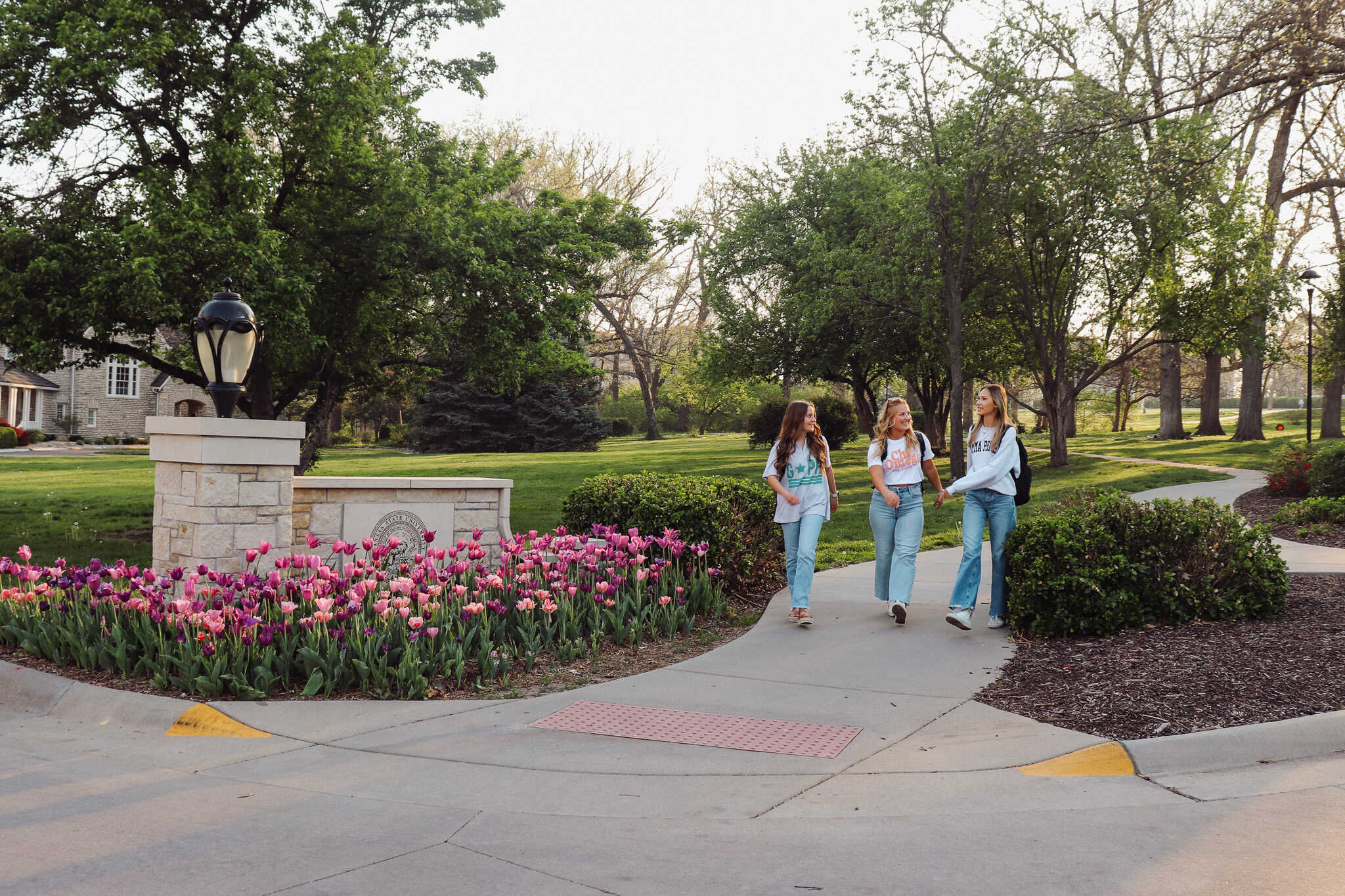
Fraternity and Sorority Life
Supporting personal growth, confidence, connection and impactful friendship.
Fraternity and Sorority Life at Kansas State
Fraternity and Sorority organizations at Kansas State University have an over 100 year history of defying stereotypes, exceeding standards, and maximizing potential of our undergraduate members. Each of our 35 chapters strive to build a connected community, bonded over shared values of academic excellence, service to the community, and fellowship with others.
Over 3,000 students are actively involved on our campus, approximately 20% of the Kansas State University student body. For over 30 years, our fraternity and sorority GPA has been higher than the All-University GPA. There are hundreds of leadership opportunities through the organizations and many community service opportunities in and around Manhattan.
Fraternities and Sororities are governed by the Interfraternal Council and Panhellenic Council. They are made up of 7 members each. You can learn more about each council and the organizations they serve through the links below.


